C# ScottPlot
last modified October 18, 2026
In this article we show how to generate charts in C# using the ScottPlot library.
ScottPlot is an open source library for creating charts in .NET. We can create various types of charts including scatter charts, line charts, bar charts, pie charts, or candlestick charts. The charts can be saved to image files or displayed in Windows Forms, WPF, Avalonia, Blazor, and other user interface frameworks.
The examples in this article use ScottPlot 5. Its API differs considerably from ScottPlot 4; code written for version 4 does not compile with version 5.
$ dotnet new console -n Charts
$ cd Charts
$ dotnet add package ScottPlot
We create a console project and add the library. ScottPlot renders with SkiaSharp; the native SkiaSharp libraries for Windows, macOS, and Linux come with the package.
Line chart
A line chart is a basic type of chart which displays information as a series of data points connected by line segments.
using ScottPlot;

Plot plt = new();

double[] xs = Generate.Consecutive(51);
double[] ys = Generate.Sin(51);

var line = plt.Add.Scatter(xs, ys);
line.Color = Colors.Red;
line.LineWidth = 3;
line.MarkerSize = 0;

plt.SavePng("lineplot.png", 600, 400);
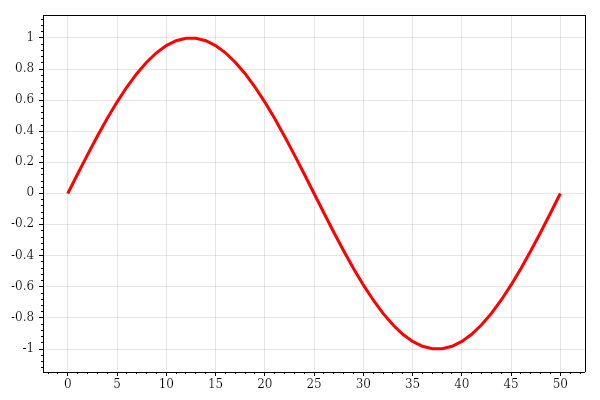
In the example, we create a simple line chart. We save the chart to a PNG image.
Plot plt = new();
We create a Plot object. It holds the plottable items, the axes,
and the layout of the chart.
double[] xs = Generate.Consecutive(51);
double[] ys = Generate.Sin(51);
The Generate class contains helper methods that produce sample
data. Consecutive generates an array of evenly spaced numbers
(0, 1, 2, …); Sin generates one period of a sine wave.
var line = plt.Add.Scatter(xs, ys);
line.Color = Colors.Red;
line.LineWidth = 3;
line.MarkerSize = 0;
All plottables are added through the plt.Add property. A scatter
plot connects the data points with lines and draws a marker at each point. We
set the line colour and width and hide the markers.
plt.SavePng("lineplot.png", 600, 400);
We save the chart to a PNG file of 600x400 pixels. ScottPlot also provides
SaveJpeg, SaveBmp, SaveWebp, and
SaveSvg methods.
In the next example, we draw a cosine function with a dashed line.
using ScottPlot;

Plot plt = new();

double[] xs = Generate.Consecutive(100);
double[] ys = Generate.Cos(100);

var line = plt.Add.ScatterLine(xs, ys);
line.Color = Colors.Blue;
line.LineWidth = 2;
line.LinePattern = LinePattern.Dashed;

plt.SavePng("lineplot2.png", 600, 400);
The ScatterLine method creates a scatter plot without markers. The
line style is set with the LinePattern property.
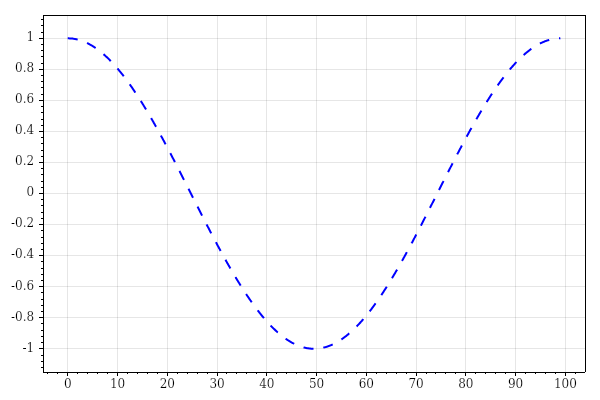
Chart title, labels, legend & margins
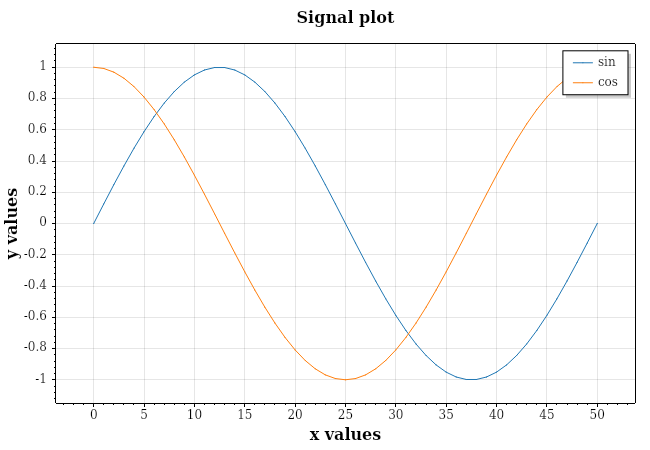
In the following example, we set a chart title, axis labels, a legend, and margins.
using ScottPlot;

Plot plt = new();

var sin = plt.Add.Signal(Generate.Sin(51));
sin.LegendText = "sin";

var cos = plt.Add.Signal(Generate.Cos(51));
cos.LegendText = "cos";

plt.Title("Signal plot");
plt.XLabel("x values");
plt.YLabel("y values");

plt.Axes.Margins(horizontal: 0.15, vertical: 0.15);
plt.ShowLegend(Alignment.UpperRight);

plt.SavePng("labels.png", 650, 450);
The program draws the sine and cosine functions.
var sin = plt.Add.Signal(Generate.Sin(51));
sin.LegendText = "sin";
A signal plot takes only the y values; the points are assumed to be evenly
spaced along the x axis. Signal plots are optimized for very large data sets.
The LegendText property sets the text shown in the legend.
plt.Title("Signal plot");
plt.XLabel("x values");
plt.YLabel("y values");
We set the title of the chart and the labels of the axes.
plt.Axes.Margins(horizontal: 0.15, vertical: 0.15);
We set the margins between the data and the edge of the data area, as a fraction of the data range.
plt.ShowLegend(Alignment.UpperRight);
We show the legend in the upper right corner.
Time series
A time series is a data set that tracks a sample over time.
using ScottPlot;

Plot plt = new();

DateTime start = new(2026, 9, 1);
DateTime[] dates = Generate.ConsecutiveDays(30, start);
double[] values = Generate.RandomWalk(dates.Length, offset: 100);

var sc = plt.Add.Scatter(dates, values);
sc.LineWidth = 2;

plt.Axes.DateTimeTicksBottom();
plt.Title("Daily values in September 2026");

plt.SavePng("timeseries.png", 650, 450);
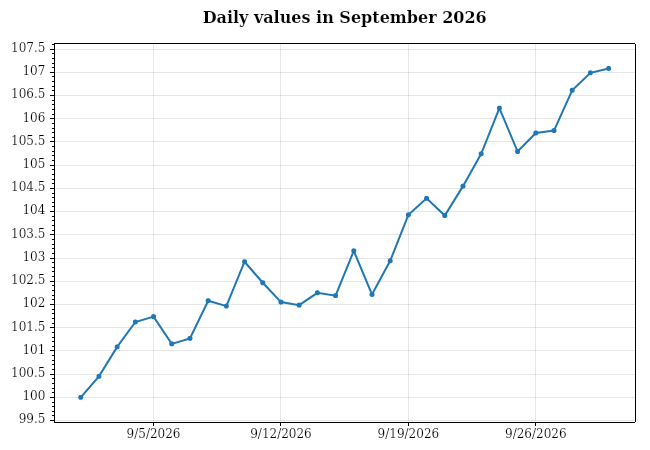
In the program, we plot time series data for thirty days.
DateTime start = new(2026, 9, 1);
DateTime[] dates = Generate.ConsecutiveDays(30, start);
We create an array of thirty consecutive days.
double[] values = Generate.RandomWalk(dates.Length, offset: 100);
We generate random values with RandomWalk. Each value differs
from the previous one by a small random amount.
var sc = plt.Add.Scatter(dates, values);
The Scatter method accepts DateTime values directly;
they are converted to OLE Automation dates internally.
plt.Axes.DateTimeTicksBottom();
We display the tick labels of the bottom axis as dates.
Bar chart
A bar chart presents grouped data with rectangular bars with lengths proportional to the values that they represent. The bars can be plotted vertically or horizontally.
using ScottPlot;

Plot plt = new();

double[] values = [26, 20, 23, 7];
string[] labels = ["Product A", "Product B", "Product C", "Product D"];

var barPlot = plt.Add.Bars(values);

foreach (var bar in barPlot.Bars)
{
    bar.Label = bar.Value.ToString();
    bar.FillColor = Colors.SteelBlue;
}

barPlot.ValueLabelStyle.Bold = true;
barPlot.ValueLabelStyle.FontSize = 16;

Tick[] ticks = labels.Select((label, i) => new Tick(i, label)).ToArray();
plt.Axes.Bottom.TickGenerator = new ScottPlot.TickGenerators.NumericManual(ticks);
plt.Axes.Bottom.MajorTickStyle.Length = 0;

plt.Axes.Margins(bottom: 0);
plt.Title("Sales");

plt.SavePng("barchart.png", 650, 450);
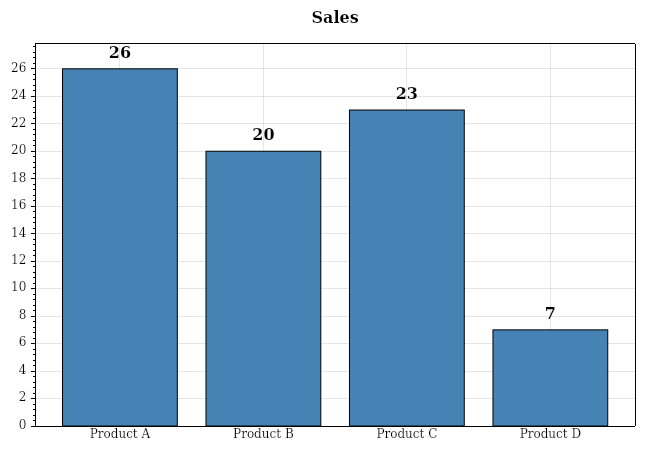
The program draws sales of four products with a bar chart.
var barPlot = plt.Add.Bars(values);
We create a bar chart with Bars. The bars are placed at positions
0, 1, 2, and 3.
foreach (var bar in barPlot.Bars)
{
    bar.Label = bar.Value.ToString();
    bar.FillColor = Colors.SteelBlue;
}
Each bar can be styled individually. We set the label, which is displayed above the bar, and the fill colour.
barPlot.ValueLabelStyle.Bold = true;
barPlot.ValueLabelStyle.FontSize = 16;
We modify the font of the value labels.
Tick[] ticks = labels.Select((label, i) => new Tick(i, label)).ToArray();
plt.Axes.Bottom.TickGenerator = new ScottPlot.TickGenerators.NumericManual(ticks);
plt.Axes.Bottom.MajorTickStyle.Length = 0;
We replace the numeric ticks of the bottom axis with product names and hide the tick marks.
plt.Axes.Margins(bottom: 0);
We remove the margin below the bars, so that they start right at the bottom axis.
In the next example, we draw a horizontal bar chart.
using ScottPlot;

(string Name, double Count)[] surgeries =
[
    ("Cataract", 543), ("Vitrectomy", 31), ("Scleral buckle", 5),
    ("Glaucoma surgery", 5), ("Blepharoplasty", 22), ("Pterygium", 5),
    ("Chalazion", 37), ("Xanthelasma", 31), ("Eyelid cyst or tumour", 27),
    ("Entropion, ectropion", 4), ("Electrocoagulation", 6),
    ("Retinal laser", 15), ("YAG laser", 49), ("Iridotomy", 19), ("Other", 7)
];

var sorted = surgeries.OrderBy(s => s.Count).ToArray();

Plot plt = new();

var barPlot = plt.Add.Bars(sorted.Select(s => s.Count).ToArray());
barPlot.Horizontal = true;

foreach (var bar in barPlot.Bars)
{
    bar.Label = bar.Value.ToString();
}

Tick[] ticks = sorted.Select((s, i) => new Tick(i, s.Name)).ToArray();
plt.Axes.Left.TickGenerator = new ScottPlot.TickGenerators.NumericManual(ticks);
plt.Axes.Left.MajorTickStyle.Length = 0;

plt.Axes.Margins(left: 0, right: 0.1);

plt.Title("Eye surgeries in the Agel Košice-Šaca hospital in 2022");
plt.XLabel("Number of surgeries");

plt.SavePng("barchart2.png", 700, 500);
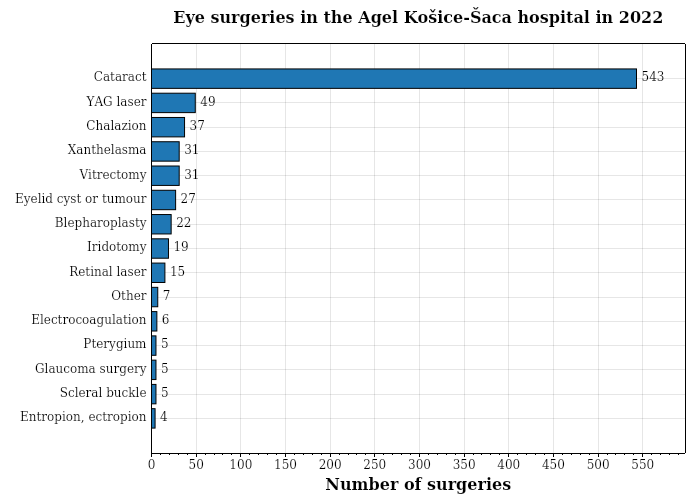
The program generates a horizontal bar chart depicting eye surgeries in a hospital. We chose a horizontal bar chart because the names of the surgeries are too long for a vertical one.
var sorted = surgeries.OrderBy(s => s.Count).ToArray();
We sort the data by the number of surgeries. The first bar is drawn at the bottom, so the largest value ends up at the top.
barPlot.Horizontal = true;
We set the bars to be horizontal.
plt.Axes.Left.TickGenerator = new ScottPlot.TickGenerators.NumericManual(ticks);
This time the names are placed on the left axis.
plt.Axes.Margins(left: 0, right: 0.1);
The bars start at the left axis; on the right, we leave space for the value labels.
Pie chart
A pie chart shows the proportions of the parts of a whole.
using ScottPlot;

Plot plt = new();

PieSlice[] slices =
[
    new() { Value = 45, FillColor = Colors.SteelBlue, Label = "C#" },
    new() { Value = 25, FillColor = Colors.Orange, Label = "Python" },
    new() { Value = 18, FillColor = Colors.SeaGreen, Label = "Go" },
    new() { Value = 12, FillColor = Colors.IndianRed, Label = "Java" },
];

var pie = plt.Add.Pie(slices);
pie.ExplodeFraction = 0.05;
pie.SliceLabelDistance = 0.6;

foreach (var slice in pie.Slices)
{
    slice.LabelFontSize = 16;
    slice.LabelFontColor = Colors.White;
    slice.LabelBold = true;
}

plt.Axes.Frameless();
plt.HideGrid();
plt.Title("Languages used in projects");

plt.SavePng("piechart.png", 500, 500);
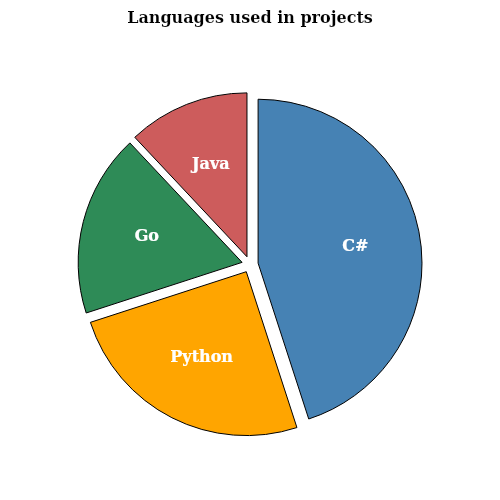
The program draws a pie chart with four slices.
PieSlice[] slices =
[
    new() { Value = 45, FillColor = Colors.SteelBlue, Label = "C#" },
    ...
];
Each slice has a value, a fill colour, and a label. The values do not need to add up to 100; the angles are computed from their sum.
pie.ExplodeFraction = 0.05;
pie.SliceLabelDistance = 0.6;
We separate the slices slightly from each other and place the labels inside the slices.
plt.Axes.Frameless();
plt.HideGrid();
Axes and grid lines have no meaning for a pie chart, so we hide them.
Scatter plot with a regression line
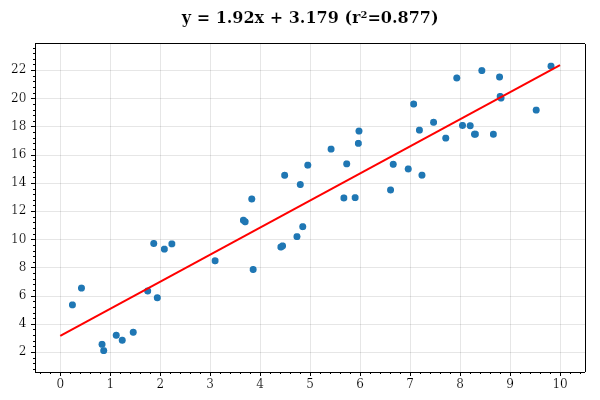
A scatter plot displays the relationship between two variables. In the next example, we fit a linear regression line to the data.
using ScottPlot;
using ScottPlot.Statistics;

var rnd = new Random(7);

double[] xs = new double[50];
double[] ys = new double[50];

for (int i = 0; i < xs.Length; i++)
{
    xs[i] = rnd.NextDouble() * 10;
    ys[i] = 2 * xs[i] + 3 + (rnd.NextDouble() - 0.5) * 6;
}

Plot plt = new();

var points = plt.Add.ScatterPoints(xs, ys);
points.MarkerSize = 7;

var reg = new LinearRegression(xs, ys);

Coordinates p1 = new(0, reg.GetValue(0));
Coordinates p2 = new(10, reg.GetValue(10));

var line = plt.Add.Line(p1, p2);
line.LineWidth = 2;
line.LineColor = Colors.Red;

plt.Title(reg.FormulaWithRSquared);

plt.SavePng("scatter.png", 600, 400);
We generate fifty points around the line y = 2x + 3 and let
ScottPlot find the best fitting line.
var rnd = new Random(7);
We use a fixed seed, so that the program produces the same data on each run.
var points = plt.Add.ScatterPoints(xs, ys);
ScatterPoints draws only the markers, without connecting lines.
var reg = new LinearRegression(xs, ys);
The LinearRegression class computes the slope, the offset, and the
coefficient of determination (R²) using the least squares method.
Coordinates p1 = new(0, reg.GetValue(0));
Coordinates p2 = new(10, reg.GetValue(10));

var line = plt.Add.Line(p1, p2);
We draw the regression line between two points computed from the model.
plt.Title(reg.FormulaWithRSquared);
The title shows the fitted formula and the R² value.
Source
In this article we generated charts in C# with the ScottPlot library.
Author
List all C# tutorials.